DIC User Guide
This page should be conisered a guide to the core DIC user interactions and useful tips and tricks for getting good results in a reasonable amount of time. Specific examples can be found in the Examples section. If you are after a runthrough of the mathematics of the DIC engine, you can find that in the DIC.
Importing the DIC modules
After installing Pyvale, you’ll need to importing the relevent modules before going any further. We like to import the modules in the following way:
import pyvale.dic as dic
import pyvale.strain as strain
The Pyvale DIC workflow
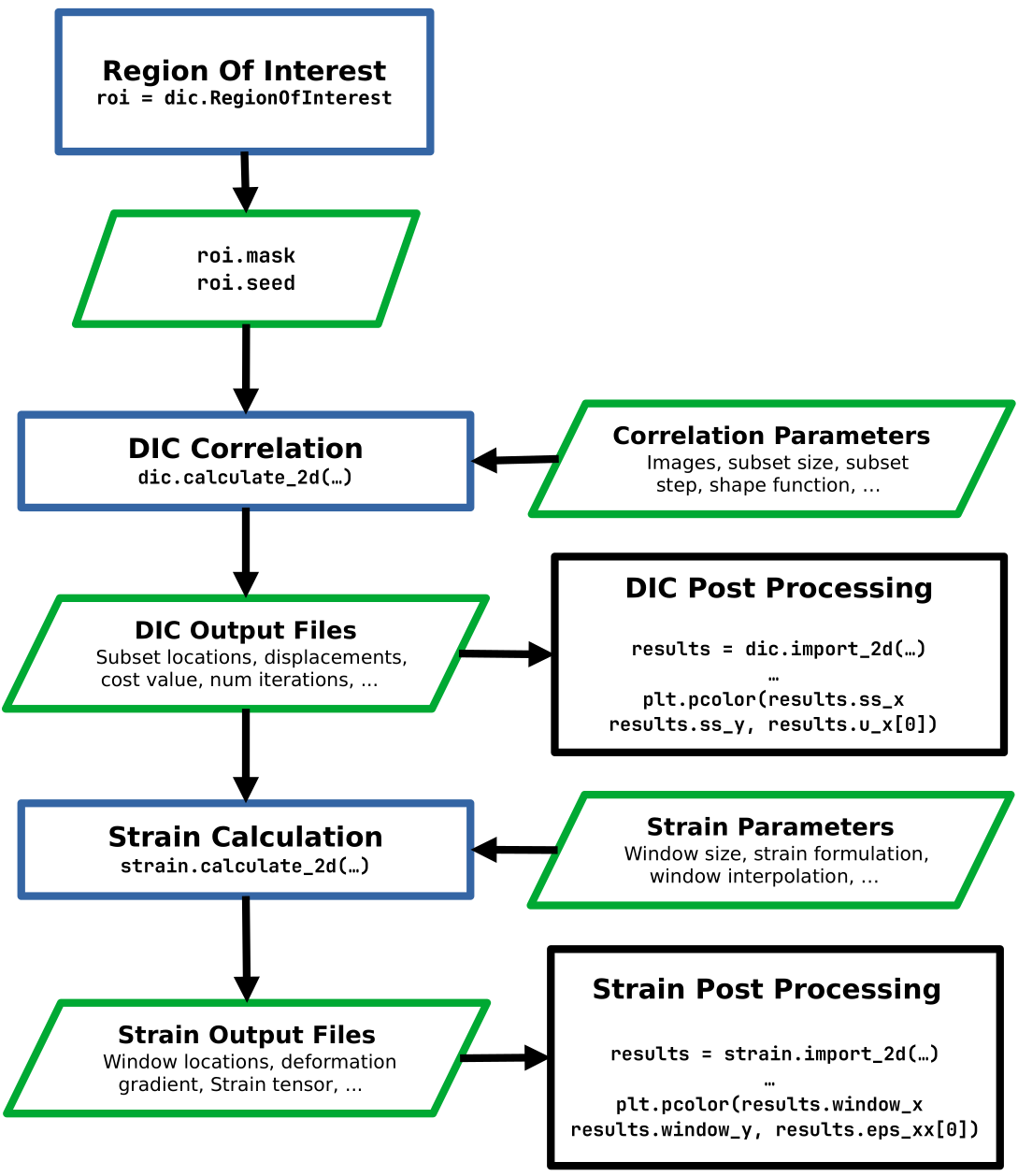
Region Of interest (ROI) Selection
Basic Selection
For any DIC calculation the user must first specify the region of interest (ROI) for their calculation. You can either use Pyvale (see the first DIC example for a detailed walkthrough), or, you can create it using Numpy. Basic approaches are summarized below:
roi = dic.RegionOfInterest(ref_image="./ref_img.tiff") # initialization
roi.interactive_selection(subset_size=31)  # ROI GUI will launch

dic.calculate_2d(
    ...,
    roi=roi.mask,
    seed=roi.seed,
    ...,
)
roi = dic.RegionOfInterest(ref_image="./ref_img.tiff") # initialization
roi.rect_boundary(left=100,right=100,bottom=100,top=100) # exclude a 100 pixel boundary

dic.calculate_2d(
    ...,
    roi=roi.mask,
    seed=[500, 500],  # seed at centre of image
    ...,
)
arr = np.zeros((1000, 1000), dtype=bool)  # image is 1000x1000
arr[100:900, 100:900] = True  # Exclude a 100 pixel boundary

dic.calculate_2d(
    ...,
    roi=arr,
    seed=[500, 500],  # seed at centre of image
    ...,
)
Behind the scenes dic.RegionOfInterest initializes roi.mask as a np.ndarray with
the same dimensions as the reference image. You can then manipulate it as you
would with any 2D Numpy array before passing to the DIC engine.
Defining a ROI with a YAML file
Another option is to use a YAML file for the ROI. When using
roi.interactive_selection you can save and open ROI configurations easily
within the GUI. In most cases, it will be easier to create and save the ROI YAML using
the GUI and use that for all future calculations. It will also give you a sense
of how the YAML is structured.
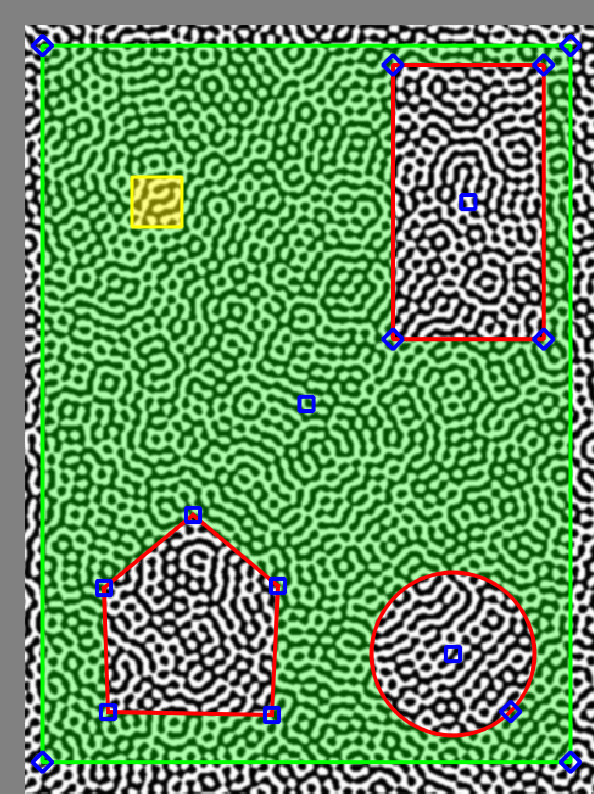
Each entry in the YAML file describes a specific ROI object with a specific type. The ROI shape can be specified with:
RectROICircleROIPolyLineROI
For each ROI shape, you must also specify the Boolean flag add which
indicates whether the ROI shape is being added (true) or subtracted (false)
from the mask.
There are shape specific fields:
pos: For rectangular, circular, and seed ROIs: the top-left or center position as [x, y].size: For RectROI and SeedROI: [width, height]. For CircleROI: diameter values (same number repeated).points: ForPolyLineROIan ordered list of [x, y] vertices defining the polyline.
The order in which they are defined in the YAML file determines the layering. The ROI object at the top of the file will be the bottom most layer. Any later additions or subtractions will be applied to previously defined ROI objects.
You can also specify the seed location using SeedROI. This requires the same
arguments as RectRoi. Ensure that this has been configured with add: true and the width and height
fields for size are identical.
An example of an ROI configured in YAML side-by-side with it loaded into the ROI GUI can be found below:
- type: RectROI
  pos:
  - 34
  - 37
  size:
  - 433
  - 588
  add: true
  - type: RectROI
  pos:
  - 322
  - 53
  size:
  - 123
  - 225
  add: false
  - type: CircleROI
  pos:
  - 371
  - 536
  size:
  - 133
  - 133
  add: false
  - type: PolyLineROI
  points:
  - - 158
    - 422
  - - 85
    - 482
  - - 88
    - 584
  - - 222
    - 586
  - - 227
    - 480
  add: false
  - type: SeedROI
  pos:
  - 108
  - 145
  size:
  - 41
  - 41
  add: true
|
|
Performing a correlation
The next step is to perform a correlation with the dic.calculate_2d function.
There are a few arguments that must be passed. These are the
rference and deformed images, the roi mask and seed, as well as the subset size
and subset step:
dic.calculate_2d(
     reference=ref_image, # Can be str | pathlib.Path | np.ndarray
     deformed=def_image,  # Can be str | pathlib.Path | np.ndarray
     roi_mask=roi.mask,   # np.ndarray
     seed=roi.seed,       # pair of intergers. Allowed as list[int] | list[np.int32] | np.ndarray
     subset_size=31,      # must be an odd number
     subset_step=15
)
All other possible arguments will have default values. See the API documentation for this function for more details.
Understanding Output files
The next step is to understand the output. By default the results will be saved
in the users current working directory in human readable .CSV format with a filename prefix of
dic_results_ followed by the name of the deformed image.
For 2D DIC, text output files contain the following columns:
subset_x: X-coordinate of the center of the subset (or window) used in displacement tracking or correlation analysis.subset_y: Y-coordinate of the center of the subset used in displacement tracking or correlation analysis.disp_u: Displacement in the X-direction (horizontal) calculated for the subset.disp_v: Displacement in the Y-direction (vertical) calculated for the subset.disp_mag: Magnitude of the displacement vector.converged: Boolean flag indicating whether the displacement calculation algorithm converged for this subset.cost_zncc: The final value of the cost function used during the displacement calculation. The reported value is always given as the ZNCC value no matter if the SSD, NSSD or ZNSSD has been chosen as the correlation function. The ZNCC is calculated with the final parameter values from the last optimizer iteration.ftol: The final value of the function tolerance, a measure of how much the cost function changed between iterations at convergence.xtol: The final value of the solution tolerance, a measure of how much the solution (displacement) changed between iterations at convergence.num_iter: The number of iterations the algorithm took to converge for this subset.
When a calibration is provided, additional physical-unit columns may be included:
disp_u_mm: Displacement in the X-direction in millimetres in the camera 0 world coordinate system.disp_v_mm: Displacement in the Y-direction in millimetres in the camera 0 world coordinate system.coord_x_mm: X-coordinate in millimetres in the camera 0 world coordinate system.coord_y_mm: Y-coordinate in millimetres in the camera 0 world coordinate system.
For stereo DIC, output files contain the same 2D temporal DIC columns followed by stereo matching and 3D reconstruction columns. The additional stereo columns are:
stereo_disp_u_px: Horizontal pixel displacement from the left image subset to the corresponding right image subset. When imported withdic.import_3d, this is available asdic_data.stereo.disparity_u_px.stereo_disp_v_px: Vertical pixel displacement from the left image subset to the corresponding right image subset. When imported withdic.import_3d, this is available asdic_data.stereo.disparity_v_px.stereo_disp_mag_px: Magnitude of the left-to-right stereo pixel displacement.stereo_disp_u_mm: Reconstructed X-direction displacement in millimetres in the camera 0 world coordinate system.stereo_disp_v_mm: Reconstructed Y-direction displacement in millimetres in the camera 0 world coordinate system.stereo_disp_w_mm: Reconstructed Z-direction displacement in millimetres in the camera 0 world coordinate system.stereo_x_mm: Reconstructed X-coordinate in millimetres in the camera 0 world coordinate system.stereo_y_mm: Reconstructed Y-coordinate in millimetres in the camera 0 world coordinate system.stereo_z_mm: Reconstructed Z-coordinate in millimetres in the camera 0 world coordinate system.stereo_converged: Boolean flag indicating whether the stereo left-to-right subset match converged.stereo_cost_zncc: Final ZNCC value for the stereo left-to-right subset match.stereo_ftol: Final function tolerance value for the stereo optimizer.stereo_xtol: Final solution tolerance value for the stereo optimizer.stereo_num_iter: Number of optimizer iterations used by the stereo subset match.
You can alter the path, delimiter and filename prefix of the output file using the arguments
output_basepath, output_delimiter and output_prefix. You
can also opt to save results in binary format. This can be done by setting
output_binary=True. Binary 2D DIC files use the .dic2d extension and
binary stereo DIC files use the .dic3d extension.
Importing DIC Results
Once you have finished your correlation, you can proceed with any
visualization and post-processing tools/software. Pyvale does provide
the capability to read the DIC data using a single command into a
dataclass that can be utilized for simple plotting. Importing data is done with
the dic.import_2d command. The below highlights how to import data and
create a simple plot of the displacement:
import matplotlib.pyplot as plt

dic_data = dic.import_2d(data="./dic_results_*", delimiter=",")

# plot of vertical displacement for first deformation image.
plt.pcolor(dic_data.ss_x,
        dic_data.ss_y,
        dic_data.v_px[0]) # [image, y, x]
The import will find all files in the current working directory with that
filname prefix. If you have changed output_delimiter prior to the
correlation you will also need to specify the same delimiter when importing the data.
To read binary files (with .dic2d or .dic3d extension), pass binary=True
to the import function.
For stereo imports, the left-to-right pixel matching offsets are stored as
dic_data.stereo.disparity_u_px and
dic_data.stereo.disparity_v_px. These correspond to the
stereo_disp_u_px and stereo_disp_v_px output file columns.
Strain Calculation
The previous step is optional if you are wanting to perform a strain calculation. If you don’t need to do any kind of visualization or analysis, you can import DIC data and calculate strains using
strain.calculate_2d(data="./dic_results_*",
   input_delimiter=",",
   window_size=5,
   window_element=9
)
dic_data = dic.import_2d(data="./dic_results_*", delimiter=",")

strain.calculate_2d(
   data=dic_data,
   window_size=5,
   window_element=9
)
Understanding Strain Output Files
Just like the DIC output, the strain output files are saved
in the users current working directory in human readable .CSV format with a filename prefix of
strain_ followed by the name of the deformed image.
The output will have the following columns:
window_x: X-coordinate of the strain window center (pixels).window_y: Y-coordinate of the strain window center (pixels).
Deformation Gradient Components (3×2 matrix for 2D surface strain):
def_grad_00: Deformation gradient component, \(F_{00} = 1 + \partial u / \partial x\).def_grad_01: Deformation gradient component, \(F_{01} = \partial u / \partial y\).def_grad_10: Deformation gradient component, \(F_{10} = \partial v / \partial x\).def_grad_11: Deformation gradient component, \(F_{11} = 1 + \partial v / \partial y\).def_grad_20: Deformation gradient component, \(F_{20} = \partial w / \partial x\) (3D-aware).def_grad_21: Deformation gradient component, \(F_{21} = \partial w / \partial y\) (3D-aware).
Strain Tensor Components (2×2 in-plane strain):
eps_xx: Strain tensor component, \(\varepsilon_{xx}\) (normal strain in x-direction).eps_xy: Strain tensor component, \(\varepsilon_{xy}\) (shear strain).eps_yx: Strain tensor component, \(\varepsilon_{yx}\) (shear strain).eps_yy: Strain tensor component, \(\varepsilon_{yy}\) (normal strain in y-direction).
Optional Physical Coordinates (when stereo DIC calibration is available):
coord_x_mm: X-coordinate of the strain window center in millimetres in the camera 0 world coordinate system.coord_y_mm: Y-coordinate of the strain window center in millimetres in the camera 0 world coordinate system.coord_z_mm: Z-coordinate of the strain window center in millimetres in the camera 0 world coordinate system.
The strain formulation (e.g., Hencky, Green-Lagrange, Almansi) can be selected using the
strain_formulation parameter in strain.calculate_2d(). See the theory guide
for details on available strain formulations.
You can alter the path, delimiter and filename prefix of the output file using the arguments
output_basepath, output_delimiter and output_prefix. You
can also opt to save results in binary format. This can be done by setting
output_binary=True.
Importing Strain Data
Importing Strain data is done with the strain.import_2d or strain.import_3d commands.
The import_2d function imports legacy strain data and can accept data with or without
3D coordinates. The import_3d function requires 3D coordinates to be present.
The below highlights how to import data and
create a simple plot of the normal strain in the x-direction:
import matplotlib.pyplot as plt

strain_data = strain.import_2d(data="./strain_*", delimiter=",")

# plot of normal strain in x-direction for first deformation image.
plt.pcolor(strain_data.window_x,
           strain_data.window_y,
           strain_data.eps_xx[0]) # [image, y, x]
The import will find all files in the current working directory with that
filename prefix. If you have changed output_delimiter prior to the
strain calculation you will also need to specify the same delimiter when importing the data.
To read binary files, pass binary=True to the import function.
Incremental DIC
By default Pyvale performs all temporal DIC calculations against the original reference image. This is usually the simplest interpretation of the results, but it can become unreliable when the deformation between the reference image and a later image is too large for a robust subset match.
Incremental DIC changes the reference image during a sequence:
dic.calculate_2d(
     ...,
     incremental_update="IMAGE",
     incremental_update_value=1,
     ...,
)
When incremental_update is not "OFF", Pyvale may replace the active reference image with
the previous deformed image before processing the next frame. This reduces the
image-to-image deformation that the optimizer has to solve. The displacement
values written to disk are still accumulated relative to the first reference
image, so disp_u and disp_v remain total temporal displacements rather
than only frame-to-frame increments. The correlation quality fields, such as
cost_zncc, ftol, xtol and num_iter, describe the match against
the active, possibly updated reference image.
The update rule is controlled with incremental_update and
incremental_update_value. Use incremental_update="OFF" to disable
incremental reference updates:
"IMAGE": Update after everyNdeformed images, whereNisincremental_update_value. For example,incremental_update_value=1updates the reference at every available opportunity after the first deformed image."ITER": Update when the averagenum_itervalue from the previous image is greater thanincremental_update_value."COST": Update when the averagecost_znccvalue from the previous image is greater thanincremental_update_value.
The first deformed image is always matched against the original reference image. When the reference is updated, subsets that failed the threshold check in the previous frame are removed from the active subset set for later frames. For stereo DIC, the same temporal reference update is applied to the left camera stream; Pyvale also carries the previous right-camera stereo result as the updated stereo reference used for reconstructing 3D displacements.
Performing Stereo DIC
Stereo Digital Image Correlation extends 2D DIC by using two synchronised cameras
to triangulate 3D positions of material points. To perform stereo DIC, you will need
calibrated camera intrinsics and the relative pose (rotation and translation) between
the left and right cameras. Stereo DIC uses the dic.calculate_3d function instead
of dic.calculate_2d:
dic.calculate_3d(
    reference=[left_ref_image, right_ref_image],
    deformed=[left_def_images, right_def_images],
    roi_mask=roi_mask,
    seed=seed,
    calibration=calib,  # Calib dataclass from pyvale.calib
    subset_size=31,
    subset_step=15,
    ...
)
The key differences from 2D DIC are:
referenceanddeformedare lists of image pairs[left_image, right_image].A
calibrationparameter (of typeCalib) must be provided with camera intrinsics and stereo geometry.An additional
epi_distanceparameter controls the search distance along epipolar lines (default: 300 pixels).
Stereo DIC output includes all standard 2D columns for the left camera temporal correlation, plus stereo-specific columns for the left-to-right matching and 3D reconstruction. See “Understanding Output files” above for a complete list of stereo output columns.
For details on the stereo DIC theory including camera calibration, epipolar geometry, and triangulation, see the Stereo DIC theory guide.
DIC with Large Images/Displacements
Setting a Maximum Displacement
Typically if you are performing DIC with large displacements that will exceed well above 100 pixels, then there will be a few arguments that you will want to consider tweaking that might help to improve your results.
Firstly, it’s important to chose a max displacement value that is comfortably larger than your estimate for the final maximum displacement. For example, if you think your max displacement is roughly 300 pixels, then trying a value of 512 (powers of two help with FFT efficiency) would be a sensible option. This can be done with:
dic.calculate_2d(
     ...,
     max_displacement=512,
     ...,
)
Pyvale will always round the max_displacement value up to the next greatest power of 2. So if you select 400, it would still round to 512. Again, this is to benefit from the efficiencies of FFTs.
Enabling Outlier Removal in Multiwindow FFTCC Initialization
The FFTCC multiwindowing approach involves seeding smaller windows with the rigid estimates from neighbouring points in the previous larger window. This can sometimes be problematic when multiple windows are involved as incorrect estimates can be propogated through the smaller windows, leading to a wildly incorrect initial rigid estimate for the displacements.
Pyvale has an FFT displacement outlier removal filter that, when enabled, will kill likely incorrect spikes in the rigid estimates for each FFTCC window size. This can be enabled with the following arguments when calling the DIC engine:
dic.calculate_2d(
     ...,
     fft_filter=True,
     fft_filter_threshold=3.0, # <-- Default value
     fft_filter_radius=3,
     fft_filter_corr_power=2.0,
     ...
)
The FFT displacement outlier removal works in the following way:
Looks at nearby subsets in a 2D neighborhood
Computes a correlation-weighted vector median of their shifts
Computes a weighted median vector residual
A vector is replaced if its normalized residual is larger than the adaptive threshold. A larger
fft_filter_thresholdis therefore more tolerant, while a smaller value kills larger deviations.
Sequential Image Loading
When working with a series of large images, RAM usage starts to become an important consideration. In it’s current form, Pyvale will read all images in the workflow when it starts. This isn’t a huge problem for typical DIC workflows where images are typically 10s of MBs, but will start to cause crashes with high resolution images (100s MBs.). To get around this we’d recommend placing the DIC engine call in a loop over the images. An example of which can be found below:
ref_img = "ref_00.tiff"
def_imgs = ["def_00.tiff", "def_01.tiff", "def_02.tiff"]

for def_img in def_imgs:
    dic.calculate_2d(
        roi,
        reference=ref_img,
        deformed=def_img,
    )
There are plans to change this in later pyvale versions so that images are read sequentially and thus avoiding the need for any loops. Please keep an eye on the documentation for any future changes.
Selecting a Thread Count
Pyvale uses OpenMP for parallel calculations.
Users can select the number of threads used in the DIC calculation with the
num_threads argument in dic.calculate_2d:
dic.calculate_2d(
    roi,
    reference="ref.tiff",
    deformed="def.tiff",
    num_threads=4,
)
Alternatively, those on UNIX operating systems (MacoS, Linux) can set the number
of threads using the OMP_NUM_THREADS environment variable.
If you are using Windowos PowerShell you can use the command $env:OMP_NUM_THREADS=.
It is worth noting that Pyvale will only use this value if it has not been
specified with the num_threads= function argument.